Image & Outputs
Color Legend
How to use
- Upload an image — any JPG, PNG or WebP on your device. Drop it on the box or click to choose a file.
- Set the cell size. Twenty is the default; smaller squares keep more detail, bigger ones are faster to paint.
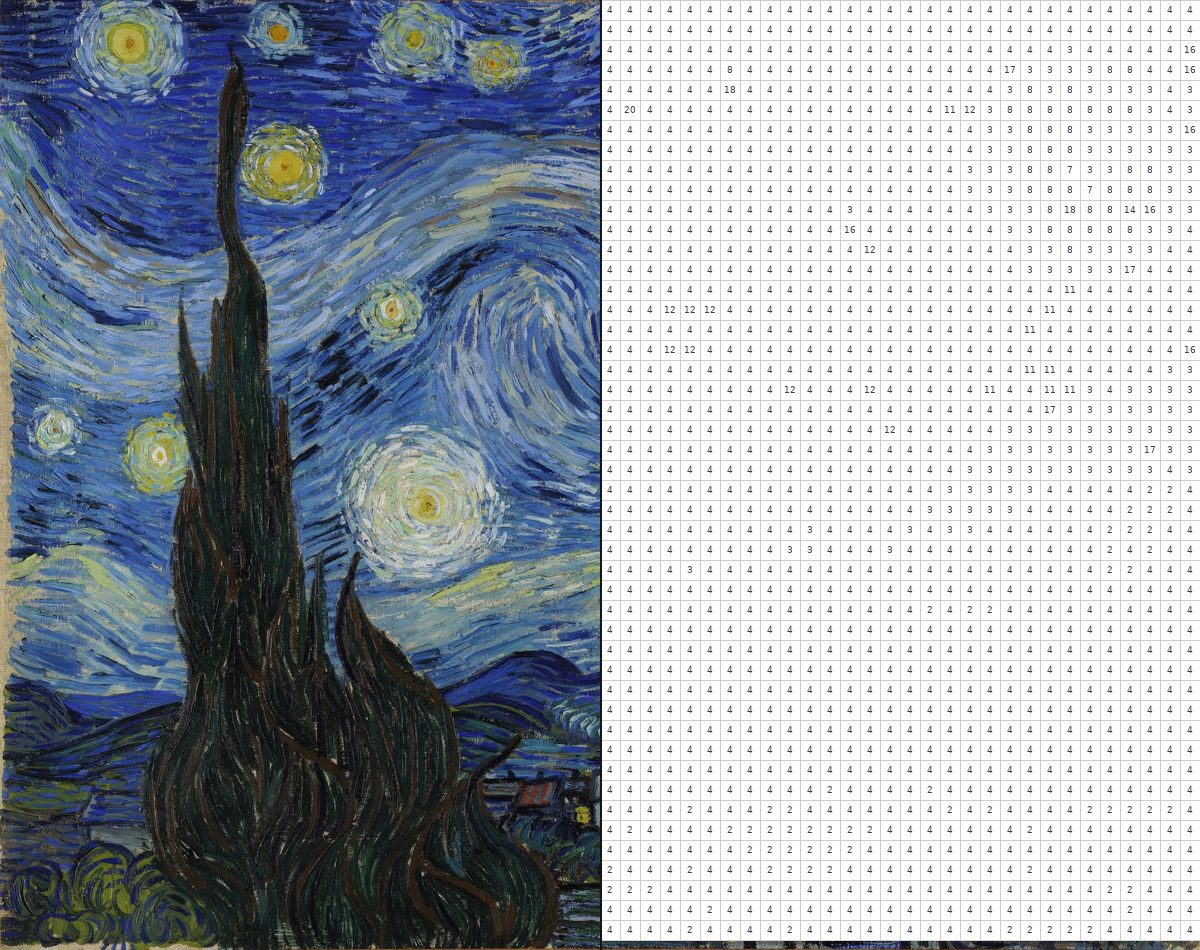
- Press Generate. Your photo, the Colored Preview and the Numbered Grid appear side by side, and the legend below lists all twenty colors.
- Check the preview against the grid, adjust the cell size and generate again if the picture reads as mush.
- Press Print for a clean sheet, or Download PDF for the grid and legend as a file.
About this tool
A paint-by-number is a painting taken apart and handed back as instructions. This generator does it the direct way: it lays a grid over your photo, averages each square down to one color, matches that average to the nearest of twenty fixed paint colors, and prints that color's number in the middle of the square. White is treated as the background and left blank, so the paper does the work. Fill every number correctly and a recognisable image appears, because the value structure was decided before any detail existed.
The cell size is the only real decision. At 20 pixels — the default — a normal photograph becomes a few thousand squares, small enough to hold an eye or a highlight and large enough to fill with a brush. Drop to 8 and you keep eyelashes and leaves, at the cost of a grid that takes an evening to paint. Push to 60 and you get something closer to a poster: bold, blocky, finishable by a child in one sitting. The palette never changes, which is the point — twenty tubes, the same twenty every time, so the legend from one sheet works for the next.
Photographs with a clear light source work best: strong side light, real shadows, a simple background, one obvious subject. That is the same brief a studio works to when a photograph has to become a canvas — the reference is judged on whether its light reads, not on whether it is pretty. It is worth reading how professional oil reproductions are painted, layer by layer, because the sequence is the same one this tool approximates in software: big shapes first, values before color, detail last. Flat overcast light, cluttered backgrounds and heavy image noise give the averaging nothing to separate, and the sheet comes back looking like confetti.
Everything happens on your own machine: the image is decoded by the browser, the work is done on a canvas, and no copy is kept anywhere. The legend below the sheet lists all twenty colors in palette order, so you can buy or mix the tubes before you generate anything — number 11 is the same blue on every sheet this tool has ever made.
FAQ
How does the generator turn my photo into numbers?
The picture is divided into square cells of the size you choose. Each cell is averaged down to a single RGB value, that value is matched to the closest of twenty fixed paint colors, and the number of that color is printed in the middle of the cell. The Colored Preview shows the same grid filled in, so you can see what the finished sheet should look like.
What cell size should I use?
Twenty is the default and a good place to start. Anything between 5 and 100 is allowed. A smaller cell keeps more detail but produces many more squares to fill, and the numbers shrink with the cell. A larger cell gives a bolder, more poster-like result that a child can finish in one sitting.
Why do some squares have no number?
White is the background color. Any cell whose average lands nearest to white is left empty, so the paper does the work and you are not asked to paint white over white. Every other cell carries the number of its color.
How do I print or save the sheet?
Press Print and the page hides everything except the numbered grid and the color legend, so the browser prints a clean sheet. Press Download PDF and you get an A4 file with the numbered grid on the first page and the legend after it, sized to fit the page.
Is my photo uploaded anywhere?
No. The image is read by your browser, processed on your own device and never sent to a server. You can disconnect from the internet after the page loads and the tool still works.
What are the twenty colors?
White, Black, Lt Gray, Dk Gray, Red, Orange, Yellow, Lime, Green, Cyan, Blue, Purple, Magenta, Brown, Beige, Pink, Sky Blue, Olive, Maroon and Navy, in that order. The list never changes, so number 11 means the same blue on every sheet you make, and the legend on this page shows all twenty from the moment it loads.
More tools
Color
Oil Paint Color Mixer
Enter paint amounts in %, mL or fl oz and see the mixed color as HEX, RGB and CMYK.
Drawing
AI Coloring Pages Generator
Describe a scene, pick a style, and get a line-art page to print and color.
Words
Artwork Name Generator
Titles for paintings, prints, and series, shaped by subject, mood, and style.
Practice
Visual Animal Generator
A random animal with a drawing prompt, for sketchbook practice and warm-ups.